Stop copy-pasting screenshots into Translate.
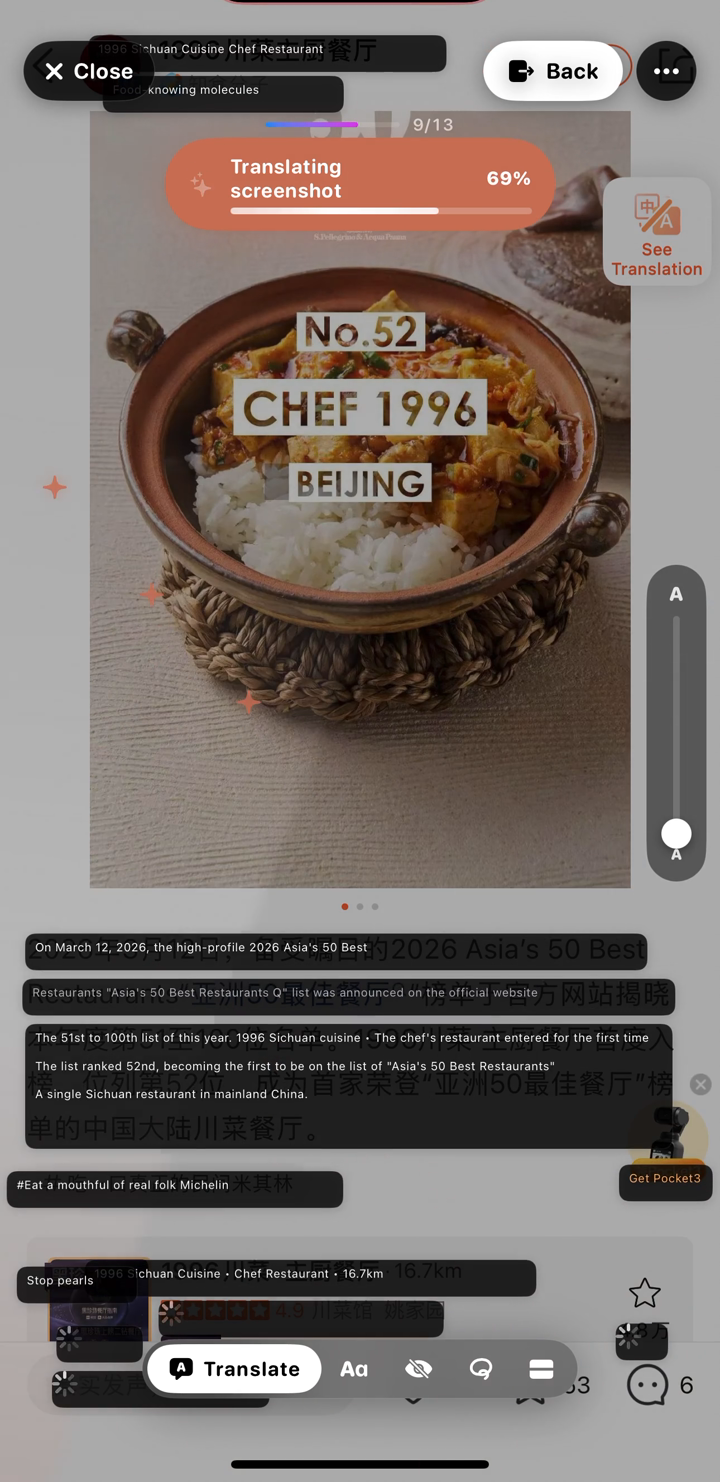
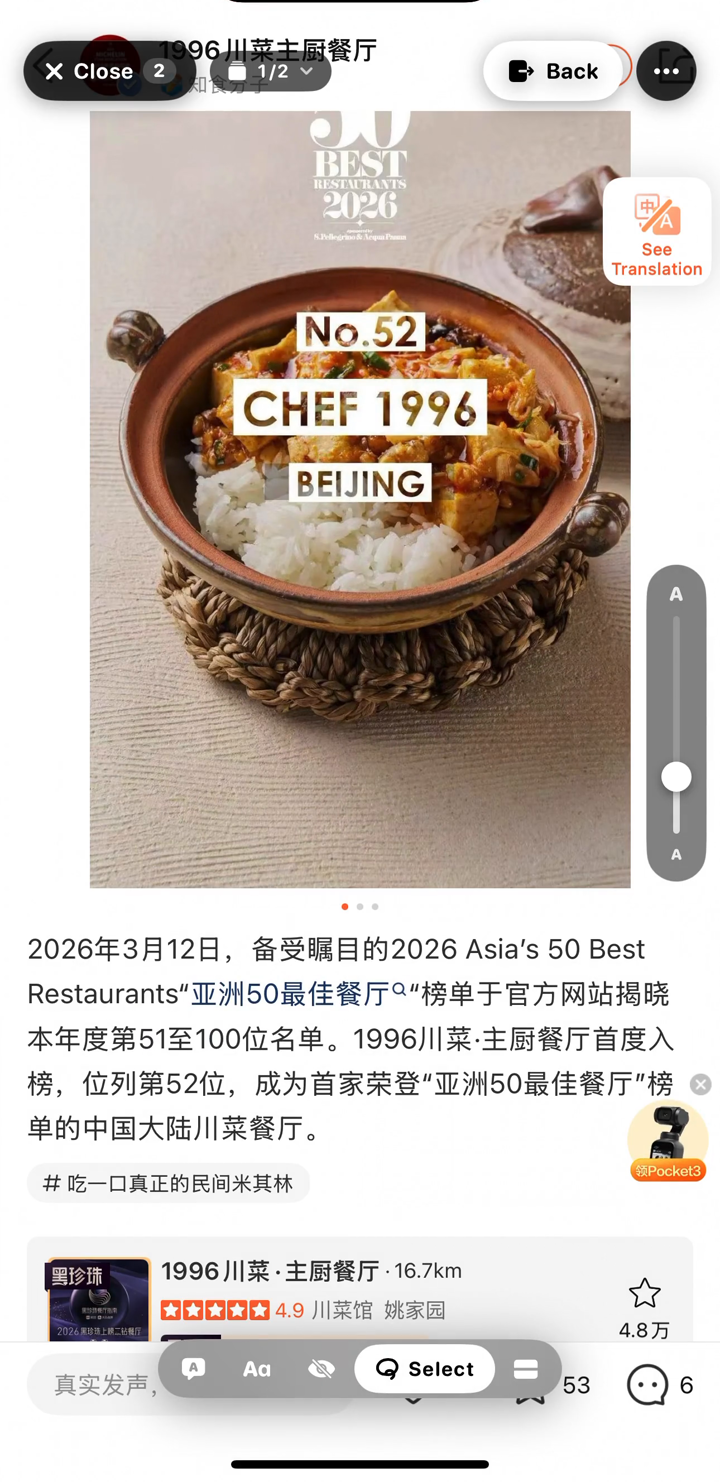
Screenshot anything you can't read. Rosetta picks it up automatically and lays the translation right where the original text was — no app-switching, no cropped output, no squinting.
Two taps. Or zero with Back Tap.
Take a screenshot
iOS shortcut: Side button + Volume Up. Or set up Back Tap to do it with a double-tap on the back of your phone.
Open Rosetta
Your screenshot's already there, already translating. Take a few in a row and Rosetta stacks them automatically — swipe through the deck.
Read in place
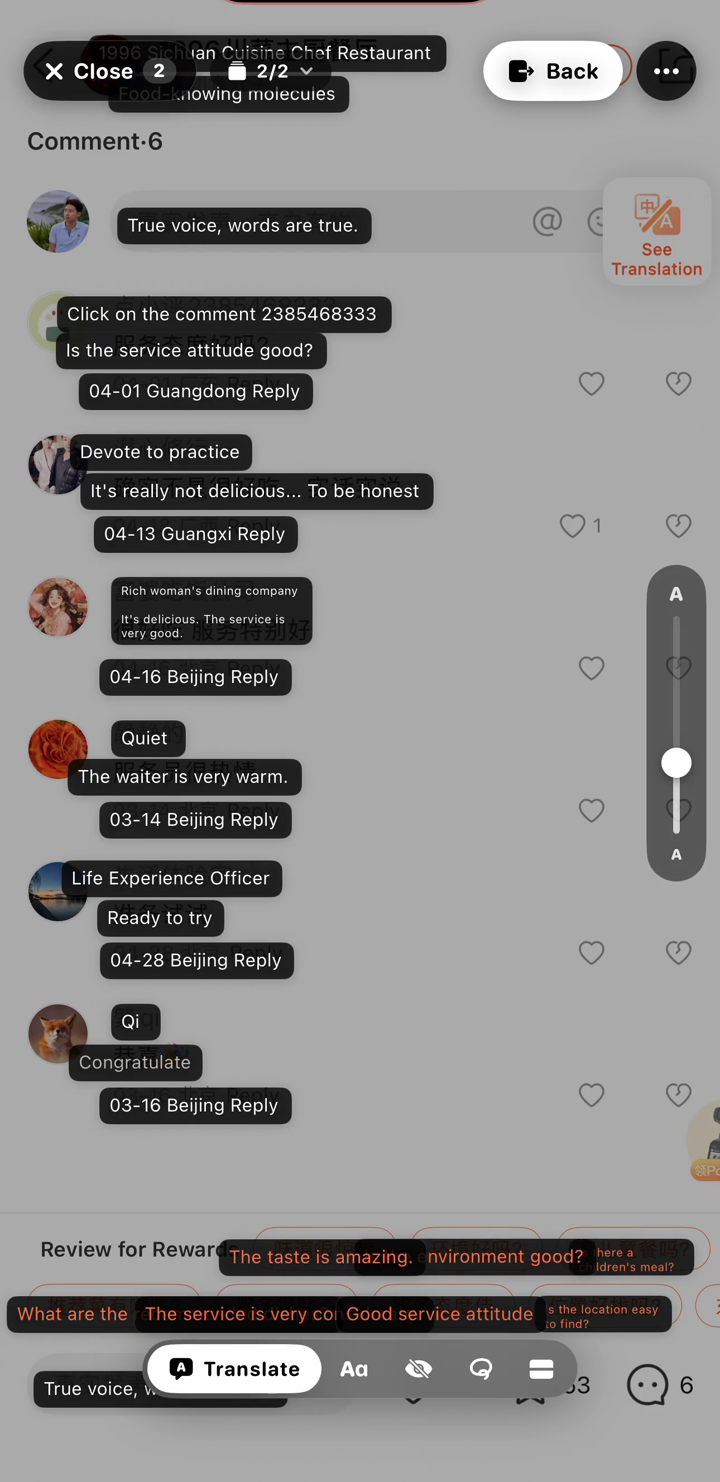
Translation chips appear right where the original text was. Tap any chip for pronunciation, full sentence context, or to copy.
What makes it fast.
Back Tap to translate
Double-tap the back of your iPhone to screenshot + translate in one motion. No app launch.
Region select
Drag a box around just the part you care about — skip the noise on the rest of the screen.
Stack screenshots
Translate a batch at once. Swipe between them like a deck.
Pinyin mode
For Chinese, see romanization above each character so you can actually pronounce what you're reading.
Auto-pickup
Just take screenshots — anywhere, in any app. When you open Rosetta, they're already queued and already translating.
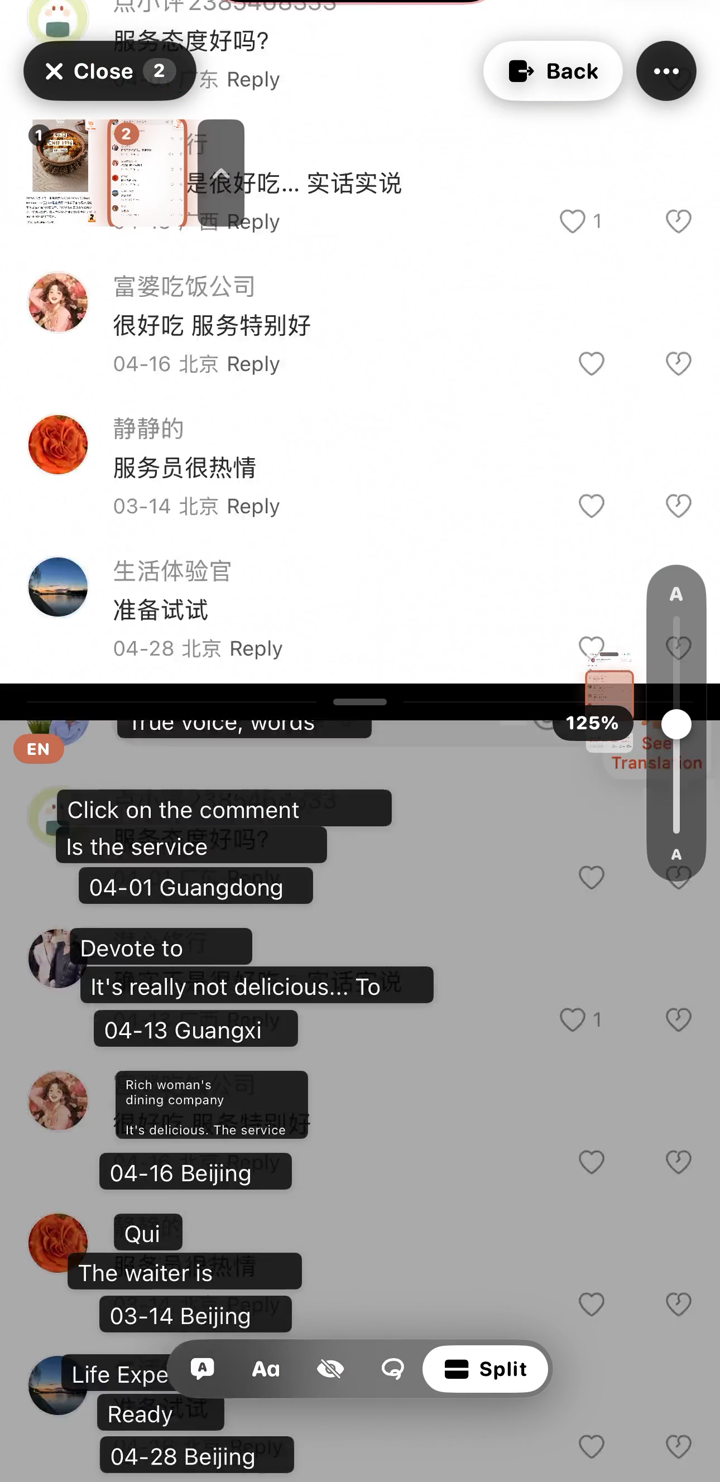
Split view
Original on one side, translation on the other — useful when you need to type a response.
Screenshots
No account. Nothing stored on our servers.
⌗On-device by default
Translation runs on your iPhone using Apple's framework. The default mode never sends a screenshot to any server.
⊘No account, no email, no sign-in
There's nothing to register. Open the app, take a screenshot, read.
⌫Auto-delete screenshots
Optional: Rosetta can delete the source screenshot from your camera roll after translation, so it doesn't clutter your photos.
☁Optional Cloud mode
For tricky stuff (handwriting, dense text, mixed languages), you can swap in your own AI provider key in Settings to use a cloud model. Cloud requests are not stored.
The honest answers.
Is Rosetta free?
Yes, fully. The default on-device translation never costs anything. The optional Cloud mode uses your own AI provider API key — you'd pay that provider directly (typically pennies). No subscription, no in-app purchases.
What data does Rosetta collect?
Nothing personal. The default mode runs entirely on your iPhone — no network traffic at all. Cloud mode (opt-in) sends only the text you choose to translate, over HTTPS, to the AI provider, which discards it after responding. No account, no email, no sign-in. See the full privacy policy.
How do I set up Back Tap?
iOS Settings → Accessibility → Touch → Back Tap. Pick "Double Tap" and set the shortcut to "Rosetta — Translate latest screenshot." Then taking a translation is literally a tap on the back of your phone.
Which languages are supported?
30+ via Apple's Translation framework — Chinese, Japanese, Korean, Arabic, Spanish, French, German, Italian, Portuguese, Russian, Hindi, Vietnamese, Thai, Indonesian, Turkish, Polish, Dutch, Ukrainian, and more. Cloud mode supports any language pair the model knows.
Does it work on Android?
iPhone only for now, iOS 18+. The Back Tap + Live Activity integrations Rosetta depends on are iOS-specific.
Who's behind Rosetta?
One person — Phillip An, a Schwarzman Scholar at Tsinghua University in Beijing. Built solo because every menu, sign, and slide in Beijing was in a language he was still learning. Feedback: open the app → Settings → Send feedback.